|
This tutorial
will show you how easily you can add decals to your models in
Softimage|XSI using the Rendertree. Our task in the Rendertree
will be to bring up a Mix2Colors node so that we can enable a
color to show up on top of another color, while using a
texture image to mask out a shape (the flower, in this case),
and finally adding bump mapping. It might sound complex, but
it's really simple once you got it all laid out in front of
you. This technique is well suited for adding "brand names" or
logos to your models. By the way, feel free to draw render
regions as you work to see how a certain step affects the
appearance (hold Q+drag in viewports; shift+Q to
disable).
This
is what we're going to achieve...

...using this :

...and this :
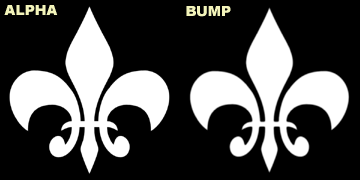
|
1. |
First, download
the database of the example scene. Unzip it somewhere,
run XSI, and open the scene DecalTutorial. |
|
|
2. |
The scene
is already lit and the bottle is ready to be worked on.
Select the bottle, press 3 to switch to the
Render module, then click on Material > Phong.
Set the Diffuse Color to 0.9/0.9/0.9
(almost pure white) and decrease the Ambient to
0. For the Specular Color, enter
1.5/1.5/1.5 and 250 in the Specular
Decay field.
This will
ensure that your object will receive no ambient light
(which we will turn off in step 3 anyway) and that the
specularity is strong and concentrated.

|
 |
|
3. |
Next, we'll get rid
of the ambient light. Click on Ambience and bring
down the color to 0 (tip: hold CTL while clicking
on a color slider to modify all 3 colors
simultaneously). |
 |
|
4. |
Since we'll be using
textures, we need to assign a Texture Projection to the
bottle that will act as a placeholder for the textures.
Click on Property > Texture Projection >
XY; you'll see a green outline appear : that's the
projection. |
|
|
5. |
Select the
projection. Note that you can scale / rotate / translate
projections just like standard objects. The only
difference is that they don't have components (like
points, edges, etc.) Anyway, I won't get too deep into
that for now. Translate and scale the projection in the
Front viewport until it fits well on the lower
portion of the bottle :

|
|
|
6. |
The rest of the
tutorial will take place in the Rendertree. Select the
bottle and press 7 to bring up its Rendertree.
Click on the Phong node and press F2 to rename
it. Type Bottle_Color (no spaces allowed!) and press
OK. It's a good habit to rename important nodes,
for the sake of convenience. |
|
|
7. |
Right click
on the Material node, and choose Disconnect All
Inputs. Click on Nodes
> Mixers > Mix 2 Colors. Connect the
Mix2Colors node (click the red dot, hold and drag) to
the Material's Surface, Shadow and
Photon inputs. Then, connect Bottle_Color to
Mix2Colors' base_color input.
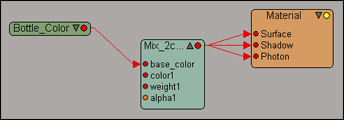
The bottle's basic
color is now set to be "under" the color1
value. |
|
|
8. |
Click on Nodes
> Illumination > Phong; connect it to
Mix2Colors' color1 input. This is the color that will
show up through the mask. Choose a lively color you like
for the Diffuse Color (I chose blue; I love blue
:) and bring down the Ambient Color to 0.
Enter 1.5/1.5/1.5 for the Specular Color,
and 150 for Specular Decay. This phong
will have a greater "spread" of specularity than the
bottle one that used a decay of 250. Before proceeding,
press F2 in the Rendertree and rename that Phong
node to Decal_Color. |
|
|
9. |
Now we need to
define the mask to be used for the decal color. Click on
Clip > Create Clip from File... If it doesn't
already default to that path, browse to
..\BottleDecalTutorial\Pictures and choose
flower_mask.pic, then press OK. Close the
panel. |
 |
|
10. |
In the
Rendertree, click on Clips > flower_mask_pic;
it brings up the file so it can be plugged into an Image
node. Click Nodes > Texture > Image, then
connect flower_mask_pic to the tex input
of Image. Connect the Image node to
Mix2Colors' weight input, then
double-click on Image. Make sure the Texture Projection
drop-down points to the projection we created earlier;
if not, select it.

|
|
|
11. |
If you draw a render
region over the bottle, you'll notice that indeed the
decal color is cut out by the mask, but something's
missing : bump mapping. Without it, your decal looks
rather flat. Let's go ahead and add bump mapping. Click
Clip > Create Clip from File... again, but
this time choose flower_bump.pic, which is a
blurred version of the mask I did in Photoshop using
feathers. Bring it up in the Rendertree by doing
Clips > flower_bump_pic. Get another Image
node by clicking on Nodes > Texture >
Image, and connect flower_bump_pic to its
tex input. |
|
|
12. |
Double-click on the
Image node you just created, and select the
texture projection in the drop-down menu. We could
create another projection and place it elsewhere, but
for this example we want it exactly on top of the decal.
Enable bump mapping and enter a value of 3 for
the Bump Map Factor.

Lastly,
connect the Image node to Bottle_Color's
bump input; a converter will be automatically
created in between the nodes for the data to be properly
translated. |
|
| |
That's it!
You're done creating the decal :) This is how your
Rendertree should look like in the end :
I hope this tutorial
has been helpful! For any questions or comments, e-mail
me.
-Goat0r |
| |